> For the complete documentation index, see [llms.txt](https://docs.sevenpens.com/drawtab/llms.txt). Markdown versions of documentation pages are available by appending `.md` to page URLs; this page is available as [Markdown](https://docs.sevenpens.com/drawtab/troubleshoot/diag-tablet-driver-diagnostics.md).
# DIAG: Checking tablet driver diagnostics
## Overview
All tablet drivers allow you to see some diagnostic information. This makes it easier to understand what is happening with the tablet without an application interfering or modifying the tablet behavior.
This diagnostic information is very useful for troubleshooting common issues such as pressure problems or non-detection of the pen.
## Wacom > Wacom tablet properties
* Launch Wacom Tablet Properties
* Click **About**
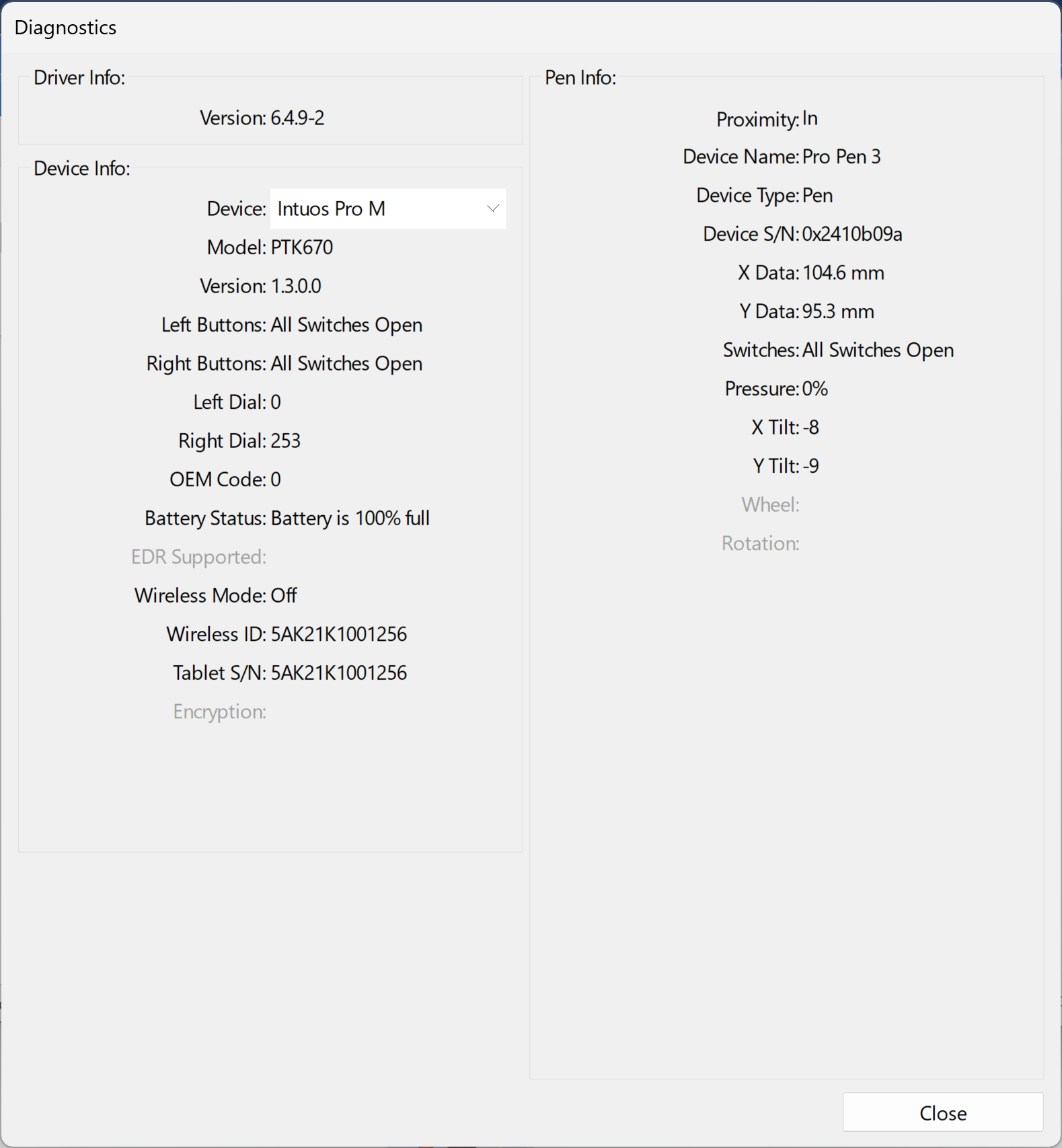
* Click **Diagnose**
* The **Diagnostics** window will appear
* As you move your mouse over the Diagnostics window, it will show you information about the pen position, pressure, tilt, etc.
## Wacom > Wacom Center
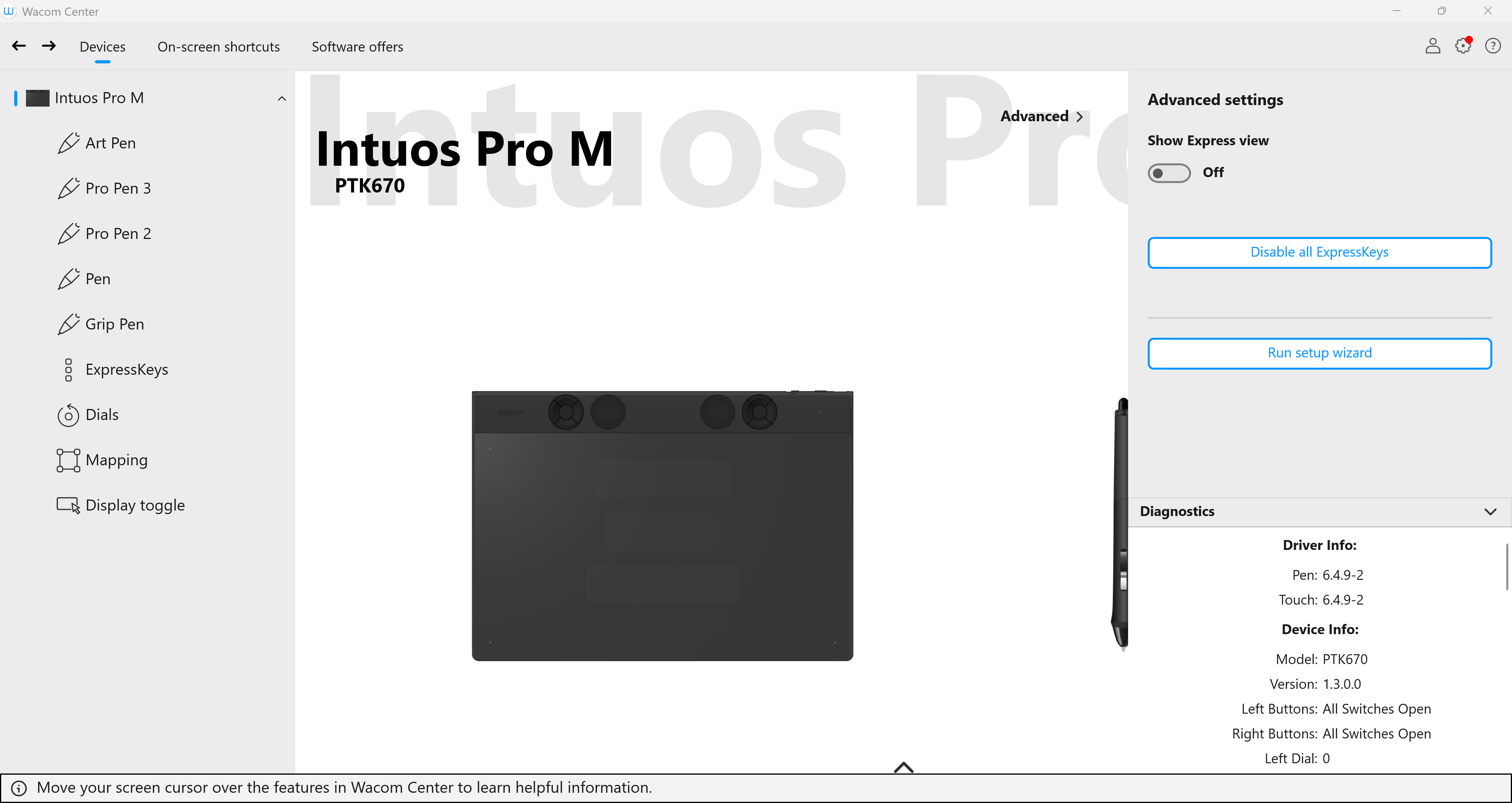
* Launch the **Wacom Center**
* Click **Advanced** on the top right to bring up the **Advanced settings** panel
* Click **Diagnostics** on the bottom right of the **Advanced settings** panel to show the diagnostics information
* NOTE: Only a portion of the Diagnostics information can be seen at one time, so you will need to vertically scroll that section.
## XP-Pen PenTablet (v4.x)
* Launch the XP-Pen **PenTablet** application
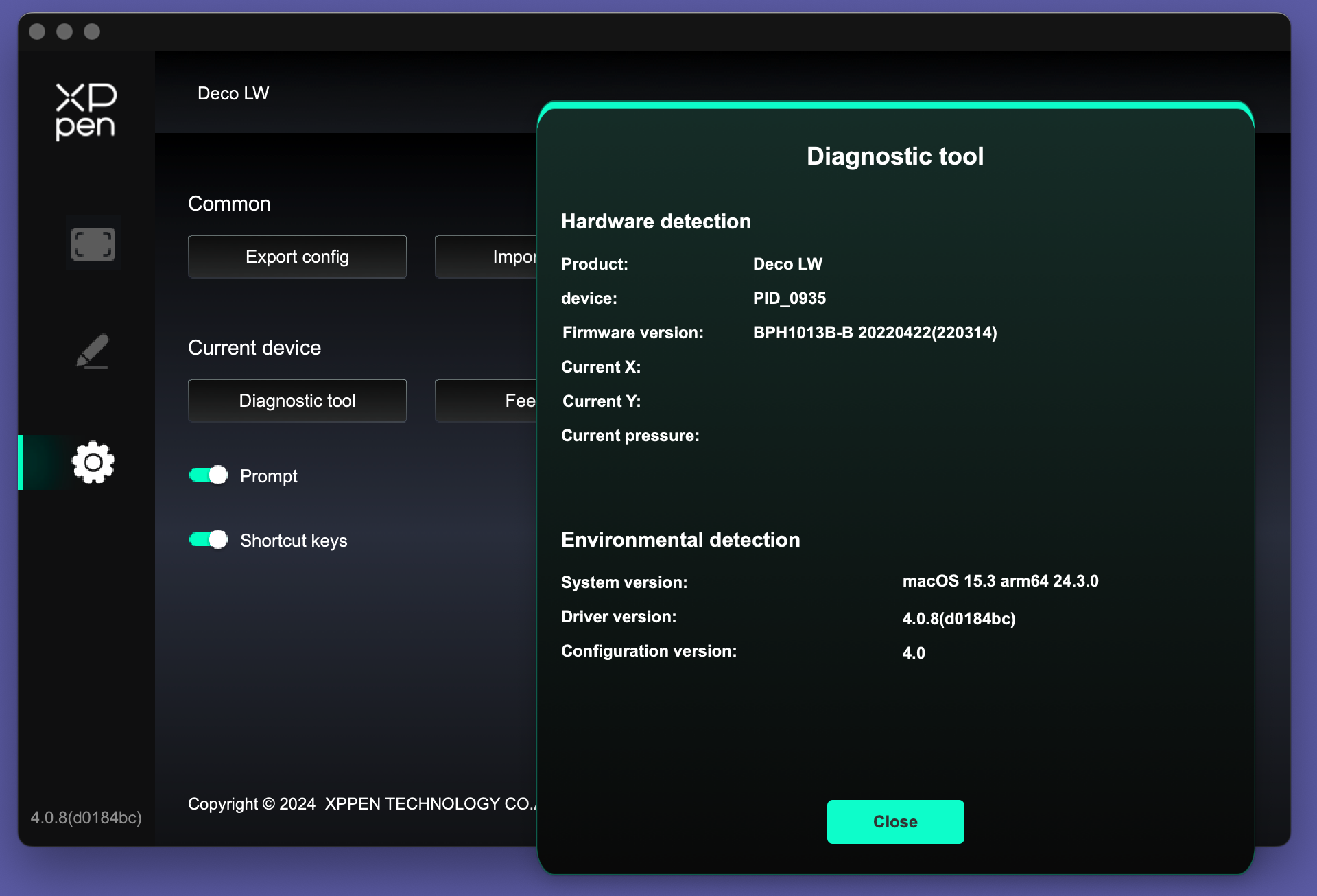
* Click on the **Gear** icon on the left
* Under **Current device**, click **Diagnostic tool**
* The **Diagnostic tool** will appear
## Huion HuionTablet app
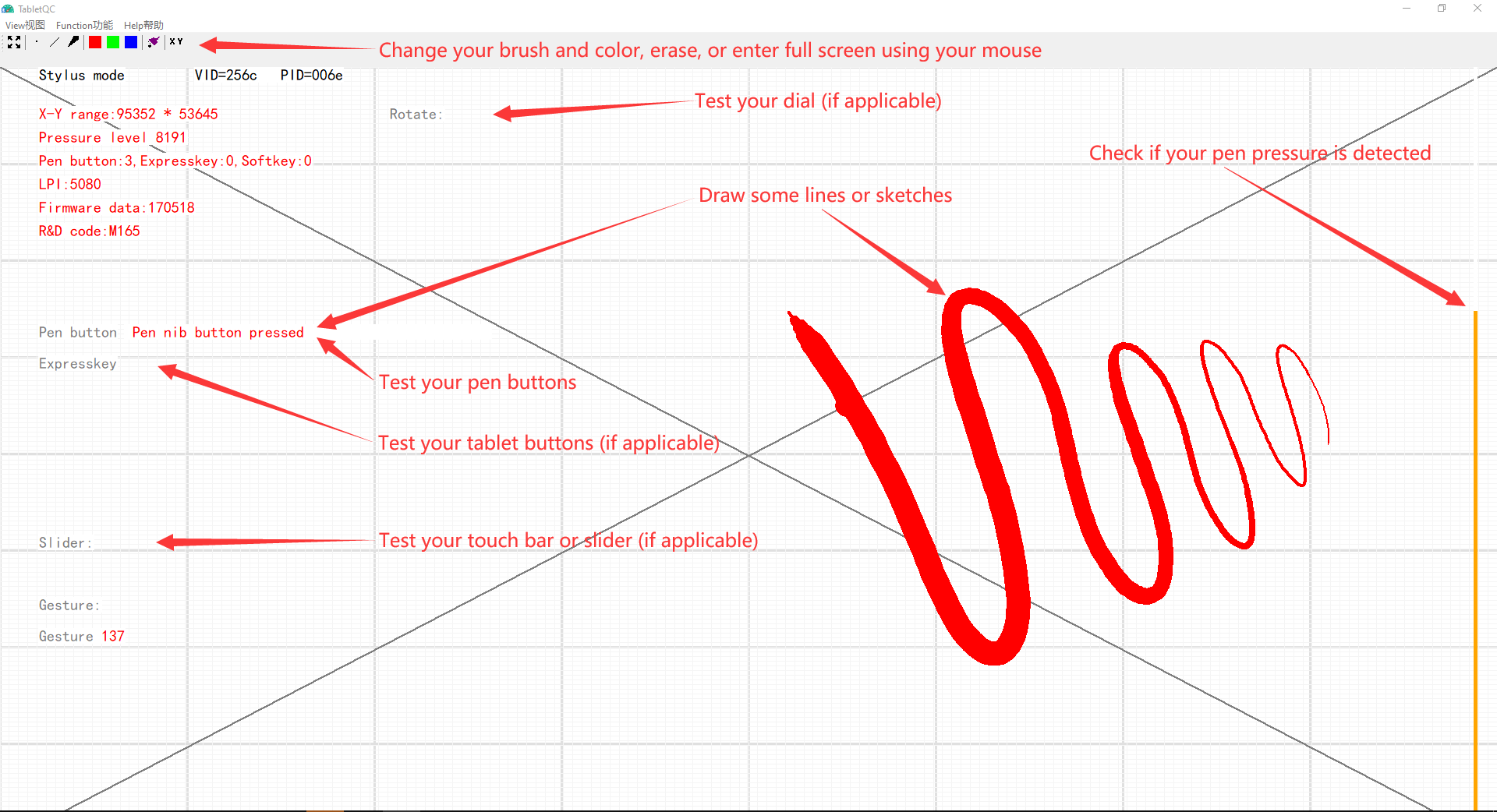
Unfortunately, there is no equivalent diagnostic tool in the **HuionTablet** application. Instead Huion has a separate diagnostic tool called the QC tool.
As of May 27 2025, I have suggested to Huion that they incorporate some features of their QC tool into the HuionTablet app. I think that would be very helpful.
## Huion QC tool
To get the Huion QC tool, contact Huion customer support and they will send you a download link and instructions on how to use it.