> For the complete documentation index, see [llms.txt](https://docs.sevenpens.com/drawtab/llms.txt). Markdown versions of documentation pages are available by appending `.md` to page URLs; this page is available as [Markdown](https://docs.sevenpens.com/drawtab/guides/platforms/windows/winink/winink-config-driver.md).
# Configure Windows Ink in the tablet driver
## Global and application-specific configuration
You can configure a driver's use of Windows Ink:
* For all applications
* For specific applications
This allows you to have a baseline configuration and then modify the behavior for specific applications as needed.
In general for the tablet driver I recommend:
* Enabling Windows Ink for all applications
* Disabling Windows Ink for specific applications that need it.
Every driver has a different way of configuring it in their UI:
* **Wacom:** Wacom Tablet Properties > Application
* **Huion**: The drop-down with the gear icon at the top.
* **OpenTabletDriver**: N/A - OTD does not support per-application Windows Ink configuration
## Wacom Driver > Wacom Tablet Properties
* Open the **Wacom Tablet Properties** app
* Under **Tool** select your pen
* If you have a pen tablet, go to the **Mapping** tab.
* Or if you have a pen display, go to the **Calibrate** tab.
* Set **Use Windows Ink** to turn on or off **Windows Ink** in the driver

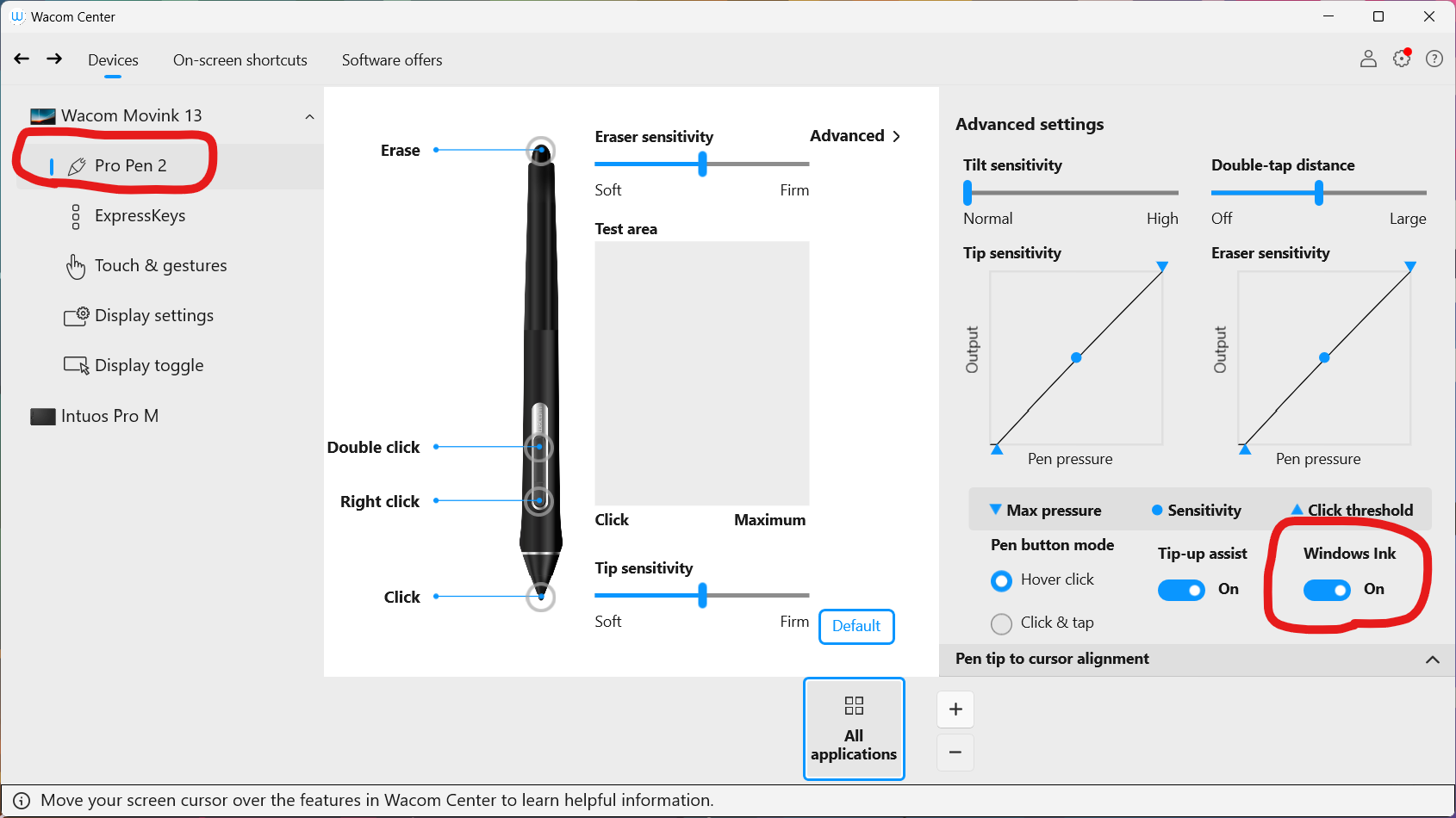
## Wacom Driver > Wacom Center
## Huion Driver > Huion Tablet app
* Open the **HuionTablet** app
* Navigate to **Digital Pen**
* Under **Press Key**, use **Enable Windows Ink** to turn Windows Ink on or off in the driver
## XP-Pen driver > PenTablet App
* Open the **PenTablet** app
* Navigate to **Digital settings**
* Use **Windows Ink** to turn Windows Ink on or off in the driver
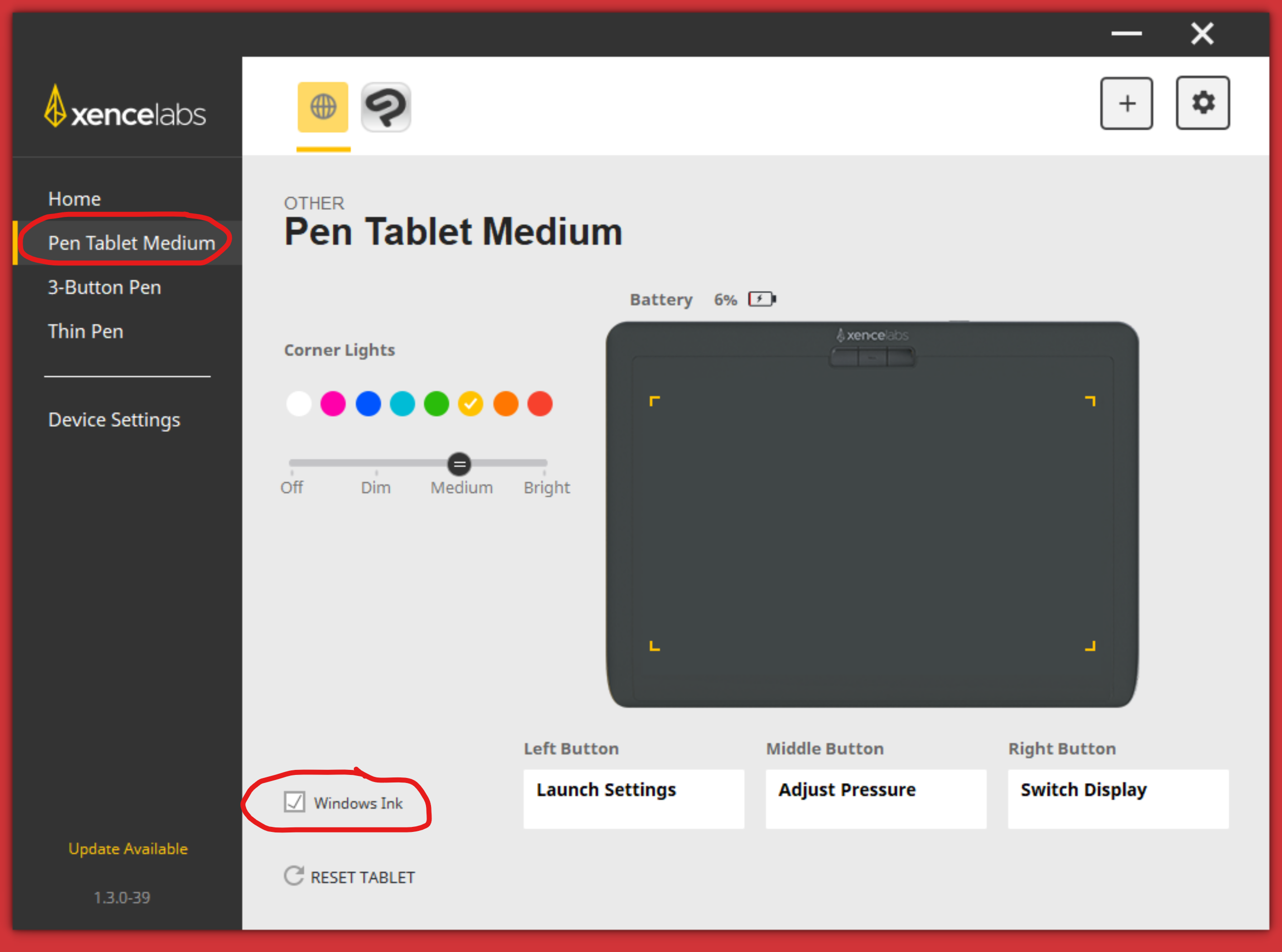
## Xencelabs Driver
## OpenTabletDriver
NOTE: To see the Windows Ink option, you have to install the OTD Windows Ink plug-in first.