> For the complete documentation index, see [llms.txt](https://docs.sevenpens.com/drawtab/llms.txt). Markdown versions of documentation pages are available by appending `.md` to page URLs; this page is available as [Markdown](https://docs.sevenpens.com/drawtab/guides/platforms/windows/winink/winink-config-apps.md).
# Configure Windows Ink for apps
## The user experience
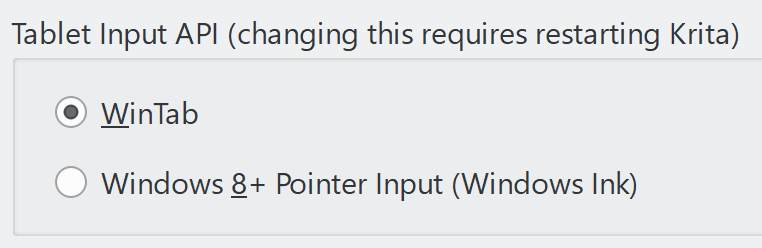
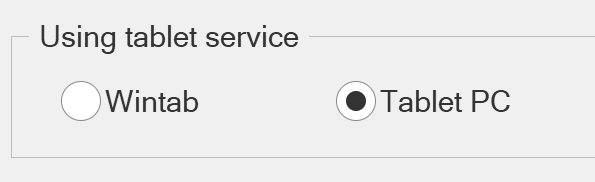
Apps vary in how they present the configuration for Windows Ink vs WinTab .
Apps may present it like this (Krita is shown). Notice that some apps use the phrase like "Windows 8 pointer API" to mean "Windows Ink"
Other apps may use the phrase "Tablet PC"
## Clip Studio Paint
* Open Clip Studio Paint
* Go to **File** > **Preferences** > **Tablet**
* In the **Tablet Input API** section, you can choose to enable or disable Windows Ink
* choose **Wintab** to enable Windows Ink
* or choose **Tablet PC** to disable Windows Ink
* Once you've made the change, restart Clip Studio Paint
## Krita
* Open Krita
* Go to **Settings** > **Configure Krita** > **Tablet settings**
* In the **Tablet Input API** section:
* Choose **Windows 8+ Pointer Input (Windows Ink)** to enable Windows Ink
* or Choose **WinTab** to disable Windows Ink
* Once you've made your change, restart Krita.
## Adobe Photoshop
See these instructions: [Configuring Photoshop to NOT use Windows Ink](/drawtab/guides/platforms/windows/winink/winink-photoshop.md)
## Affinity Photo and Affinity Designer
* Navigate to **Edit > Settings > Tools > Tablet Input Method**
* There are three options there:
* **Low Precision** (this is the default value)
* **High Precision**,
* **Windows Ink**
* Restart Affinity Photo/Designer once you change this setting.
## ArtRage Vitae
* Navigate to **Edit > ArtRage Preferences > Input Device > Tablet Options > Use Wintab** checkbox.
* Set the checkbox as you need
* CHECKED -> enable Windows Ink (it is checked by default)
* UNCHECKED -> disable Windows Ink
* Restart ArtRage once you change this setting.
## Firealpaca
* In **FireAlpaca**, navigate to **File > Brush Environment Settings**
* To the right of Select Pen Pressure API choose an option
* **Touch PC + Pen Tablet (Wintab)** -> disable Windows Ink
* **PC + Pen Tablet (Wintab)** -> disable Windows Ink
* **Tablet PC** -> use Windows Ink
* **Brush Preference Settings**
## Medibang Paint
* In MediBang, navigate to **File > Prefs and Settings > Brush Preference Settings**
* Set the **Validate native OS pen pressure detection**
* CHECKED -> enable Windows Ink (it is checked by default)
* UNCHECKED -> disable Windows Ink
* Click **OK**
* Restart Medibang
## Rebelle
* in Rebelle go to **Edit** > **Preferences** > **Tablet**
* Under Tablet Options you can pick whether Windows Ink is used:
* **Wacom compatible (WinTab)** -> disable Windows Ink
* **Xencelabs tablet** -> unknown (i need to research)
* **Windows Pointer Device** -> unknown (I need to research)
* **Windows Ink Compatible** -> enable Windows Ink
## Other applications
Many other apps covered here:
This list includes
* Photoshop CC
* Paint Tool SAI 2
* Corel Painter
* Rebelle
* Affinity Photo and Affinity Designer
 ## Krita
* Open Krita
* Go to **Settings** > **Configure Krita** > **Tablet settings**
* In the **Tablet Input API** section:
* Choose **Windows 8+ Pointer Input (Windows Ink)** to enable Windows Ink
* or Choose **WinTab** to disable Windows Ink
* Once you've made your change, restart Krita.
## Krita
* Open Krita
* Go to **Settings** > **Configure Krita** > **Tablet settings**
* In the **Tablet Input API** section:
* Choose **Windows 8+ Pointer Input (Windows Ink)** to enable Windows Ink
* or Choose **WinTab** to disable Windows Ink
* Once you've made your change, restart Krita.
 ## Adobe Photoshop
See these instructions: [Configuring Photoshop to NOT use Windows Ink](/drawtab/guides/platforms/windows/winink/winink-photoshop.md)
## Affinity Photo and Affinity Designer
* Navigate to **Edit > Settings > Tools > Tablet Input Method**
* There are three options there:
* **Low Precision** (this is the default value)
* **High Precision**,
* **Windows Ink**
* Restart Affinity Photo/Designer once you change this setting.
## Adobe Photoshop
See these instructions: [Configuring Photoshop to NOT use Windows Ink](/drawtab/guides/platforms/windows/winink/winink-photoshop.md)
## Affinity Photo and Affinity Designer
* Navigate to **Edit > Settings > Tools > Tablet Input Method**
* There are three options there:
* **Low Precision** (this is the default value)
* **High Precision**,
* **Windows Ink**
* Restart Affinity Photo/Designer once you change this setting.

