> For the complete documentation index, see [llms.txt](https://docs.sevenpens.com/drawtab/llms.txt). Markdown versions of documentation pages are available by appending `.md` to page URLs; this page is available as [Markdown](https://docs.sevenpens.com/drawtab/core/expresskeys.md).

# Auxiliary inputs

## Overview

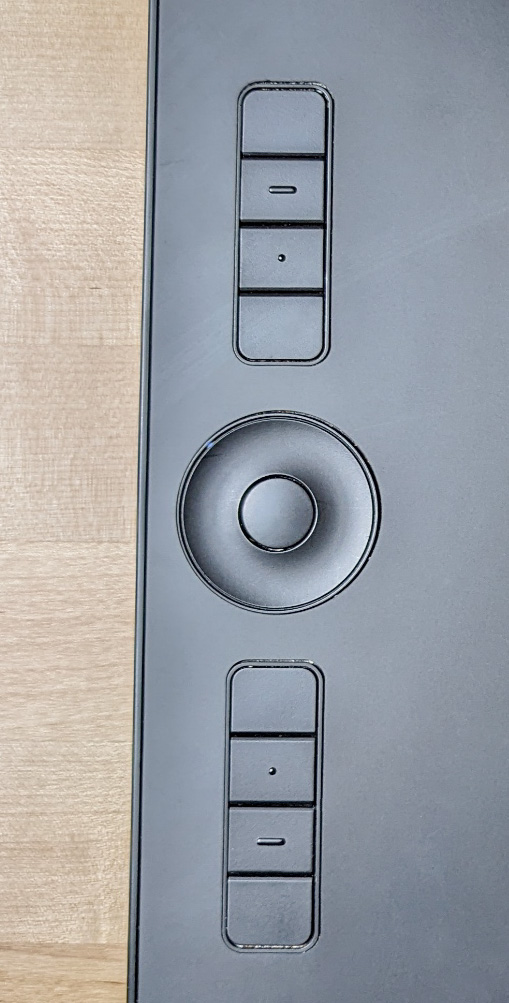
The primary way you provide input via the tablet is via the pen. However, some drawing tablets have other built-in ways of providing input.

* Buttons (both physical and capacitive)
* Dials
* Touch-sensitive strips and wheels

## Terminology: ExpressKeys

**ExpressKeys** is a Wacom-specific term for buttons on Wacom tablets. However, many people have adopted it as a general term for buttons on tablets from all brands.

Huion calls buttons "Press Keys."

## Disabling auxiliary inputs

Some people love using these kinds of inputs, but some people do not like them because they

* take up space on the tablet
* are accidentally triggered
* or their workflow just doesn't benefit from them

For these cases, you should be aware that these inputs can often be configured in the tablet driver to "do nothing".

## Binding inputs to actions

You can bind the buttons to take a variety of actions. Broadly, the categories are:

* Mouse-related actions - right click, left-click, double click
* System navigation - scroll left, scroll right, zoom in/out, pan, switch applications
* System tasks - run an application, open a file
* Keyboard - press a key, hold down a modifier key

## Common useful bindings

You can bind these auxiliary inputs to all sorts of useful actions. Here are some popular examples: [Popular bindings for auxiliary inputs](/drawtab/core/expresskeys/popular-bindings.md)

## Global vs application configuration

Tablet drivers also let you configure how these auxiliary inputs work depending on the app you are using.

For example, you can set a button to:

* Increase brush size when you are using Photoshop
* Increase opacity when you are using Clip Studio Paint
* Increase the volume of your speakers under all other conditions

## Default settings

Wacom Intuos Pro PTH-660

<figure><img src="/files/LlHoQb13HQ4VSM0h38Qw" alt=""><figcaption><p>Default ExpressKeys setting for Wacom Intuos Pro Medium (PTH-660)</p></figcaption></figure>

## Examples

### Wacom Intuos Pro Large PTH-860

<img src="/files/789HVKRhgn3oY92yXUrE" alt="" data-size="original">

## Huion Inspiroy Dial2 (Q630M)

![](/files/3LwyNymIGElnUP75IHS2)

## Example UI from Wacom Tablet Properties App

![](/files/r2JSWiZsHpPblSYioIGh)

![](/files/q4GWNASmIPkc0nMMudxH)

![](/files/CfBJRiaRO3wM15nGSJ2b)

![](/files/zkQogS6UvDvdnBIpkDuq)

![](/files/W4PtCZJzbTWrDqR6BVxq)

![](/files/iZOg0JtF3e1vQ0XtruIt)

![](/files/4zaEUSe6RX1HG3SRLeXa)


---

# Agent Instructions
This documentation is published with GitBook. GitBook is the documentation platform designed so that both humans and AI agents can read, navigate, and reason over technical content effectively. Learn more at gitbook.com.

## Querying This Documentation
If you need additional information that is not directly available in this page, you can query the documentation dynamically by asking a question.

Perform an HTTP GET request on the current page URL with the `ask` query parameter, and the optional `goal` query parameter:

```
GET https://docs.sevenpens.com/drawtab/core/expresskeys.md?ask=<question>&goal=<endgoal>
```

`ask` is the immediate question: it should be specific, self-contained, and written in natural language.
`goal` is optional and describes the broader end goal you are ultimately trying to accomplish on behalf of the user. GitBook uses it to tailor the answer towards what is most useful for that goal.

The response will contain a direct answer to the question and relevant excerpts and sources from the documentation.

Use this mechanism when the answer is not explicitly present in the current page, you need clarification or additional context, or you want to retrieve related documentation sections.