> For the complete documentation index, see [llms.txt](https://docs.sevenpens.com/drawtab/llms.txt). Markdown versions of documentation pages are available by appending `.md` to page URLs; this page is available as [Markdown](https://docs.sevenpens.com/drawtab/catalog/drawtabs/huion/huion-gs2202-notes.md).
# Huion Kamvas 22 Plus (GS2202) notes
## **Summary**
The Huion Kamvas 22 Plus is one of the best price-to-performance pen displays in the market.
NOTE: In 2023, with the arrival of the XP-Pen Artist 22 Plus (MD220FH), I think the XP-Pen is an even better choice because of the improved pressure handling of the XP-Pen X3 Pro pen.
## Basics
* Model number: GS2202
* Release year: 2020
* Active area: 22" diagonal
* **Price** - It normally costs about $450 but I see it discounted often to $400
### Links
* [Brad Colbow review of Huion Kamvas 22 Plus](https://youtu.be/GJxGzJgfYGA) 2020-09-08
* [Nemanja Sekulic review of Huion Kamvas 22 Plus](https://youtu.be/mlYTRD2KmeY) 2022-03-04
### Display specs
* Size: 22" diagonal
* Aspect ratio: 16x9
* Display panel tech: IPS
* Bit depth: 8 bits per pixel
* Anti-glare treatment: Etched glass
* Laminated: YES
* Color gamut: 140% sRGB
## Pen
### Included pen
* PW517 - [Huion PW517 pen notes](/drawtab/catalog/pens/huion-pens/huion-pw517-notes.md)
### Compatible pens
* PW517 - [Huion PW517 pen notes](/drawtab/catalog/pens/huion-pens/huion-pw517-notes.md)
* PW550 - [Huion PW550 series pens notes](/drawtab/catalog/pens/huion-pens/huion-pw550-notes.md)
* PW550S
## Display experience
### **Anti-glare sparkle**
VERY GOOD. very minimal. Not noticeable.
### **Pixelation**
With a 1920x1080 display, it looks slightly pixelated. But I don't find that a problem while drawing. My ideal pen display would have the same 22" size but with 2560x1440 resolution
### Dead pixels
None detected when I got it. And none present two years later.
### Sharpness
VERY GOOD. pixels clear and well delineated.
### Color
Color accuracy: did not measure.
### Color gamut
This is a wide color gamut display with a range of 140% sRGB.
Compared to many other displays, you may find that greens and reds are more intense than you might expect. Some people will love this - for example when watching a movie - but I found it some colors distractingly intense.
For digital art I prefer to work in a smaller color gamut of 100% sRGB.
Unfortunately, unlike other pen displays this tablet does not have way to force it into a smaller color gamut. No options were present in the OSD or the driver.
For reducing the gamut, you could use other techniques: [Clamping wide-gamut displays to sRGB](/drawtab/guides/customizing/clamping-to-srgb.md).
In my case, I just left it the way it was and did not try anything to clamp the range.
Note that I used Windows with this tablet. With MacOS there may be other options for dealing with the color.
## Drawing experience
### Pointer lag
TYPICAL. Normal for a pen display.
### Pen tracking accuracy
* **Center accuracy -** GOOD. I did not measure
* **Corner Accuracy** - Seems to me about +/- 3mm on the lower left corner. Other corners had less. A little on the high side, but it will not interfere with drawing.
### **Tilt compensation**
GOOD. Pointer has only very minor displacement when pen tilted at 45 degrees.
### **Parallax**
GOOD - low.
## Auxiliary inputs
**NONE**. So, I use keyboard shorts with this device: [TourBox](/drawtab/catalog/accessories/auxiliary-input-devices/tourbox.md)
## **Diagonal wobble**
very good. has extremely low wobble.
%20wobble.png?alt=media\&token=a47d0788-0525-472f-9ba7-b5648f245c7d)
## Ergonomics
### VESA
Supports VESA mounting
I have my Kamvas 22 plus mounted to an Ergotron LX. It works great. I especially like that it can lower the tablet enough that the bottom edge can rest on the desk. This adds for some extra stability.
### **Stand**
Comes with a basic stand that attaches via VESA mounting. Nothing fancy. but works great.
### **Legs**
Tablet has no legs.
### **Heat**
display stays cool. I leave it on 24/7 and it has no hot spots.
### **Fan noise**
NONE. It has no fans
### **Touch**
it does NOT have touch support
## **Usage notes**
I originally bought this tablet for digital art, and it works fine for that.
Over time I have it setup on my work desk on an arm. I use it as an external display but I pull it in closer when I want to draw on a whiteboard during an online meeting. I still occasionally sketch and paint on it, but since it is on my work desk I don't do as much of it as I used to.
## **Connections and Cabling**
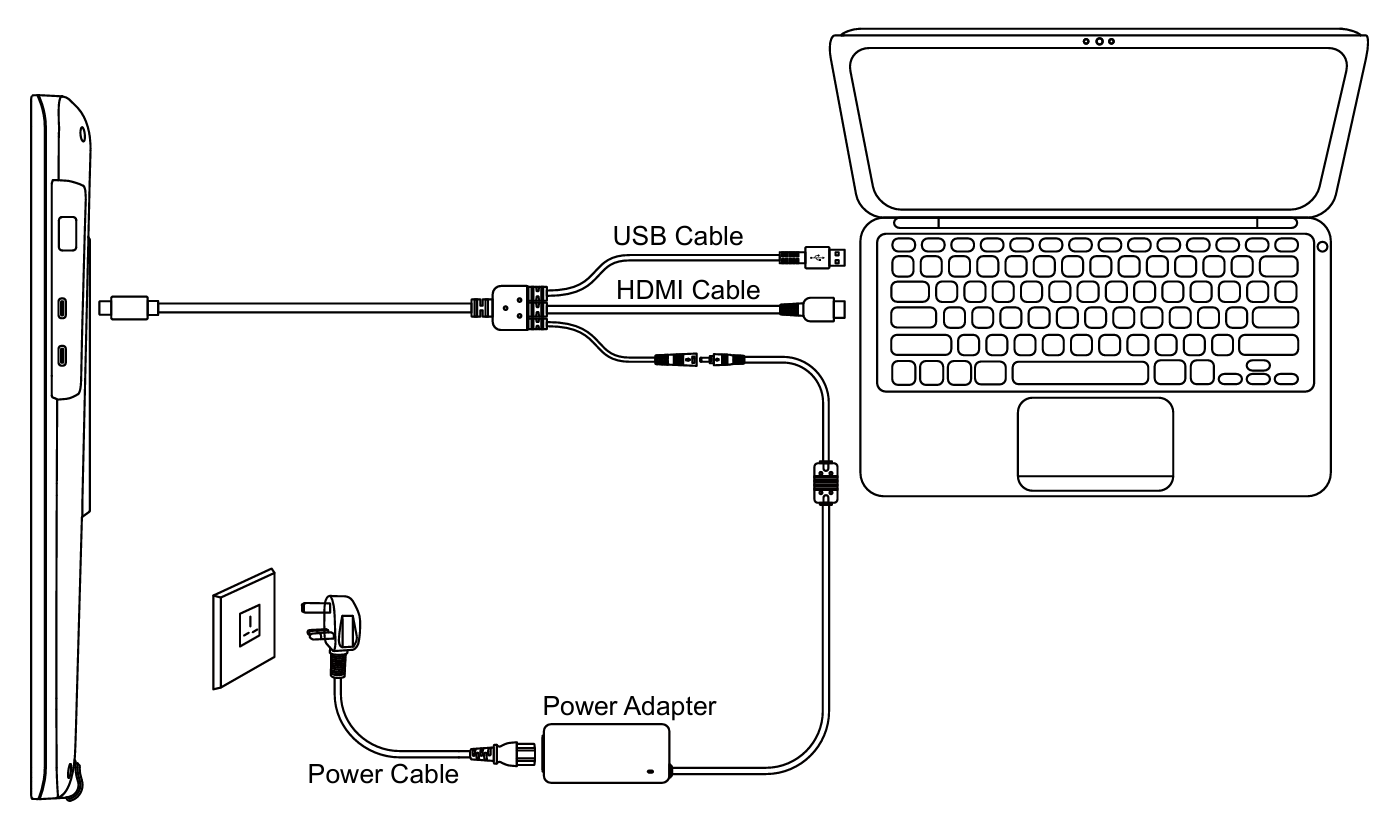
### **Connecting with HDMI for video signal**
For this case you use the included proprietary 3-in-1 cable.
### **Connecting with USB-C for video signal**
For this case you must use the 3-in-1 cable to provide power AND and a USB-C cable for video signal and data.
%20tilt%20comp.jpg?alt=media&token=c1f418bd-e031-415b-ab96-c1e392519ecf)